Checkify
For businesses, websites, apps, and physical sites

Register your business. Create trusted Checkify Passes.

Register a business, increase your verification level, and create Checkify Passes for the sites where your users need to prove trust.

Businesses build trust. Sites create Passes.

Sites are where Checkify Passes are created, such as a website, app, venue, checkout flow, or physical location. You can create sites without a registered business, but we always encourage linking them to a registered business for stronger user trust.

Start with one site and one Checkify Pass. Increase business trust over time.

Checkify business structure
Business → Site → Checkify Pass
Trust layer
Example setup
Business registered? Yes
Site added? Yes
Checkify Pass created? Ready
Business verification level Can increase
1
Register business
2
Add site
3
Create Pass
Higher
user trust
Multiple
proof requests
Businesses, sites, and passes

How Checkify is organised

Checkify separates the business, the site, and the proof request so you can start simple and build trust over time.

1

Register a business

A business is the organisation, sole trader, venue, or service provider behind the verification request.

Registering your business helps users understand who is asking for proof and gives your Checkify flows a stronger trust foundation.

2

Increase your verification level

Businesses can increase their verification level by adding more trusted business information and completing stronger checks.

The higher the business verification level, the more confidence users can have when they approve a Checkify Pass.

3

Create sites

A site is where Checkify Passes are created and managed. A site can be a website, app, online flow, venue, counter, reception desk, or physical location.

Sites can exist without a registered business, but we always encourage linking them to a verified business where possible.

Business trust

Help users trust who is asking for verification.

When users approve a Checkify Pass, they should understand who is requesting the proof and why. A registered and verified business creates more confidence than an anonymous site.

That is why Checkify encourages every site to be connected to a registered business. The site creates the Pass, but the business gives the request context and trust.

Example trust progression

1
Unregistered site
A site can create basic Checkify Passes, but user trust is lower because the business behind it is not verified.
2
Registered business
The site is linked to a business profile, giving users clearer information about who is making the request.
3
Verified business
The business increases its verification level and becomes more trusted when users review Checkify Pass requests.

Available verification levels and requirements may vary depending on the type of business and use case.

Sites and Checkify Passes

Sites are where Checkify Passes are created.

A site represents the place where verification happens. It could be a website domain, mobile app, business location, event, reception desk, checkout flow, or other customer journey.

Each site can create one or more Checkify Passes. A Pass defines what proofs are requested, such as human verification, age threshold, or approval for a specific action.

Example site setup

Site: example-shop.com
Used for online checkout, account signup, and age-gated product pages.
Pass: Human verification
Confirms the user is human instead of using a traditional CAPTCHA challenge.
Pass: Over 18 check
Confirms an age threshold without asking the business to collect a full date of birth by default.
Pass: Human + over 18
Multiple proofs can be requested together in a single Checkify Pass.

You can create sites without a registered business — but verified businesses are better.

Checkify allows flexible setup so you can start quickly. However, for real customer-facing flows, we recommend registering and verifying your business so users can see a stronger trust signal when approving requests.

Without business verification

Useful for testing and simple flows, but users may have less context.

With business verification

Stronger user confidence and better trust signals for real-world use.

Setup steps

Start with one site and one Checkify Pass.

The fastest way to start is with a single business journey such as signup, login, contact forms, booking requests, or an age gate.

Step 1

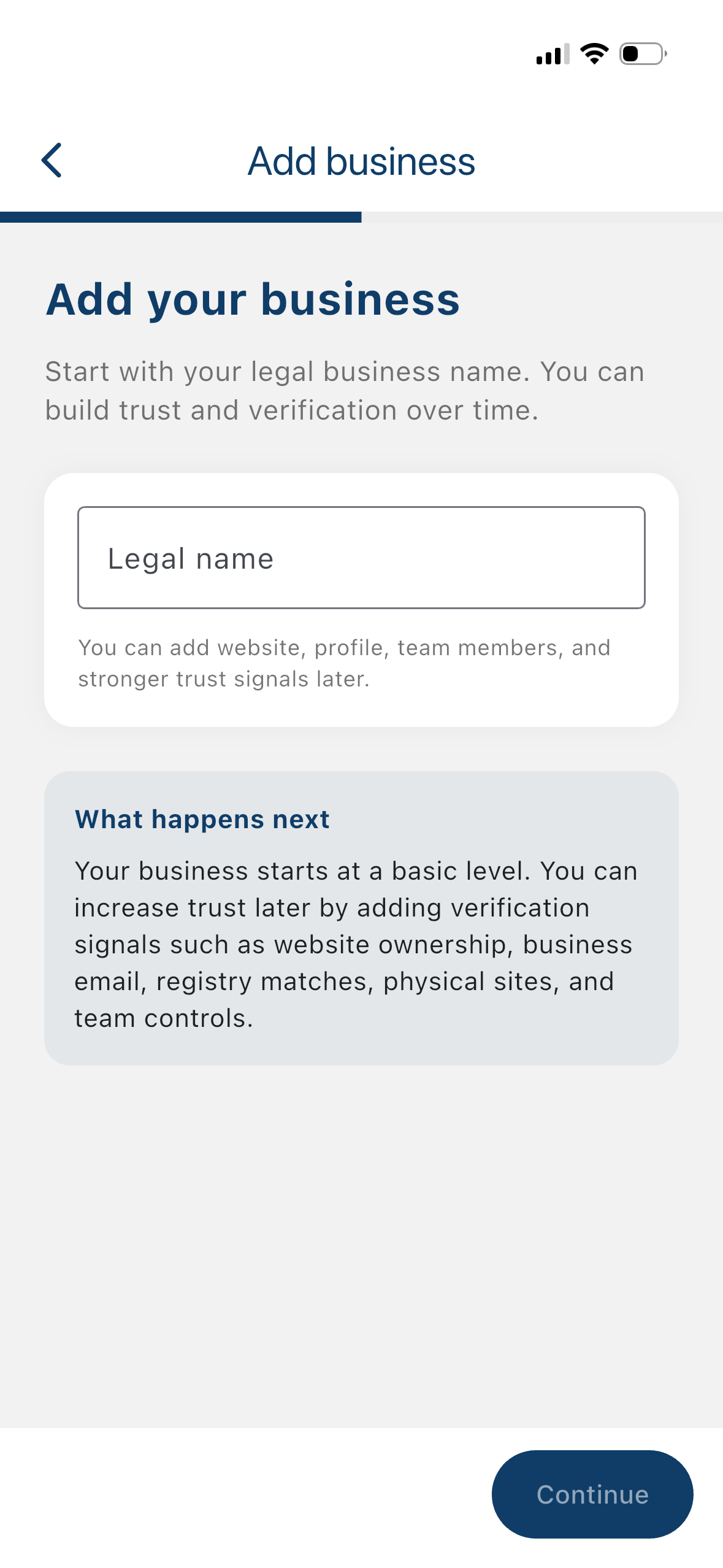
Register your business

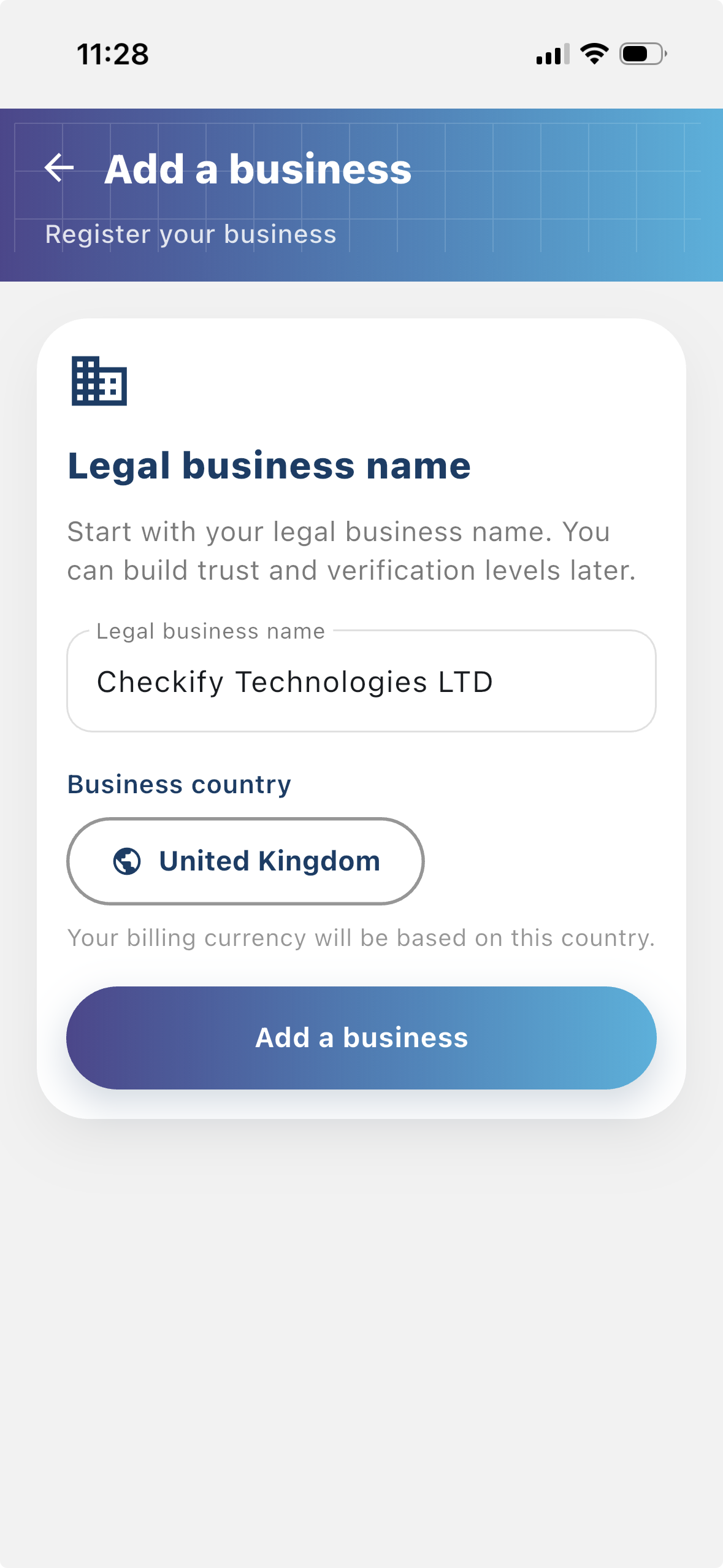
Register your business so users can see who is requesting verification. A registered business gives your Checkify flows more context and helps build trust with users.

Create your business profile in Checkify.
Add the basic business details users should recognise.
Increase your business verification level over time to become more trusted.
Outcome: Business profile created
Register business

Step 2

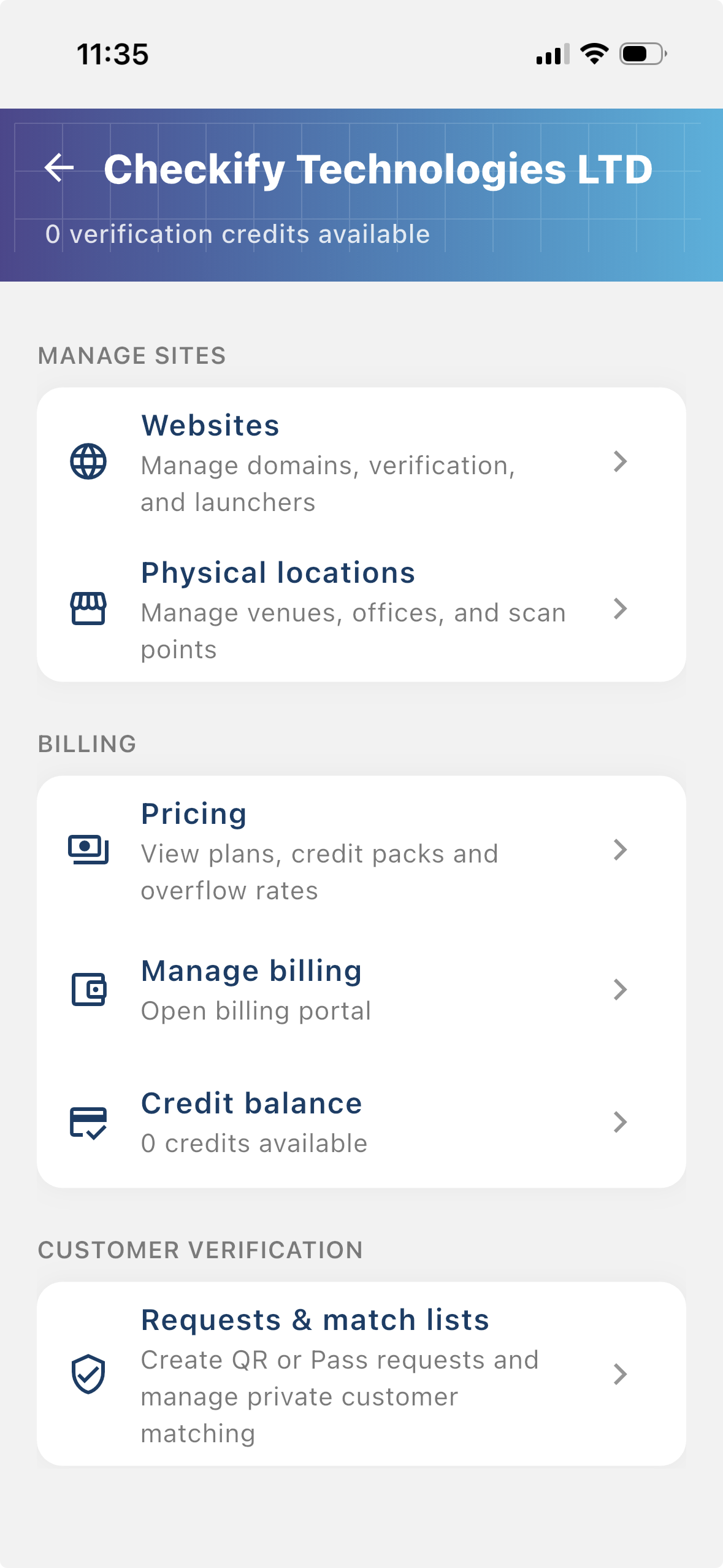
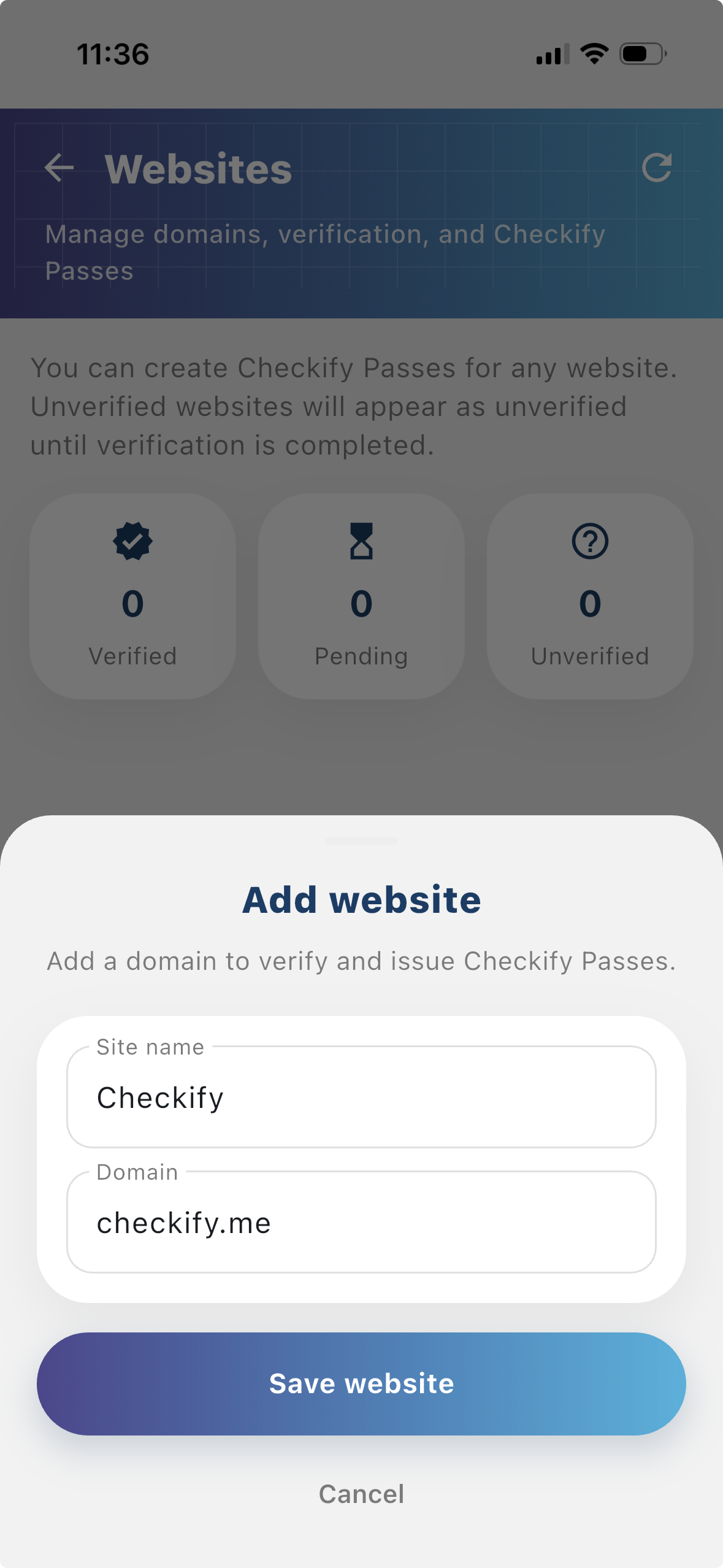
Settings - Add a site

A site is where Checkify Passes are created and used. This can be a website, app, checkout flow, booking flow, physical venue, reception desk, counter, or other real-world location.

Add a website site for online verification flows.
Add a physical site for QR checks at venues, counters, or in-person locations.
Link the site to your registered business so users know who is behind the request.
Outcome: Site ready for Passes
Add a site

Step 3

Create a Checkify Pass

A Checkify Pass is the proof request you create against a site. It defines what you want the user to prove, such as human verification, over 18, or approval for a specific action.

Choose the site where the Pass will be used.
Select one or more proofs required for this Pass.
Save the Pass and copy the Checkify Pass ID for your integration.
Example Pass setup

“For this checkout flow, confirm the user is human and over 18 before continuing.”

Outcome: Checkify Pass created
Create a Checkify Pass

Step 4

Use the Pass ID in your integration

Once the Checkify Pass has been created, you can use its Pass ID in your website, SDK, WordPress plugin, checkout flow, or custom integration.

This tells Checkify which verification request to open when the user clicks, scans, or starts the flow.

Example integration
data-checkify-pass="YOUR_PASS_ID" data-checkify-request="human"
Copy the Checkify Pass ID from your dashboard.
Add the Pass ID to your website, plugin, SDK, or custom integration.
The user sees the correct Checkify Pass when verification starts.
Outcome: Pass ready to launch
Checkify Pass preview

Ready to create your first Checkify Pass?

Start with one site, one proof request, and one business flow. Then increase your business trust level as you grow.